
Print on your own model
The text this link names is not on a guide page now. Use the search at the end of this page to find it.
Your image, painted onto one flat face of your own model.
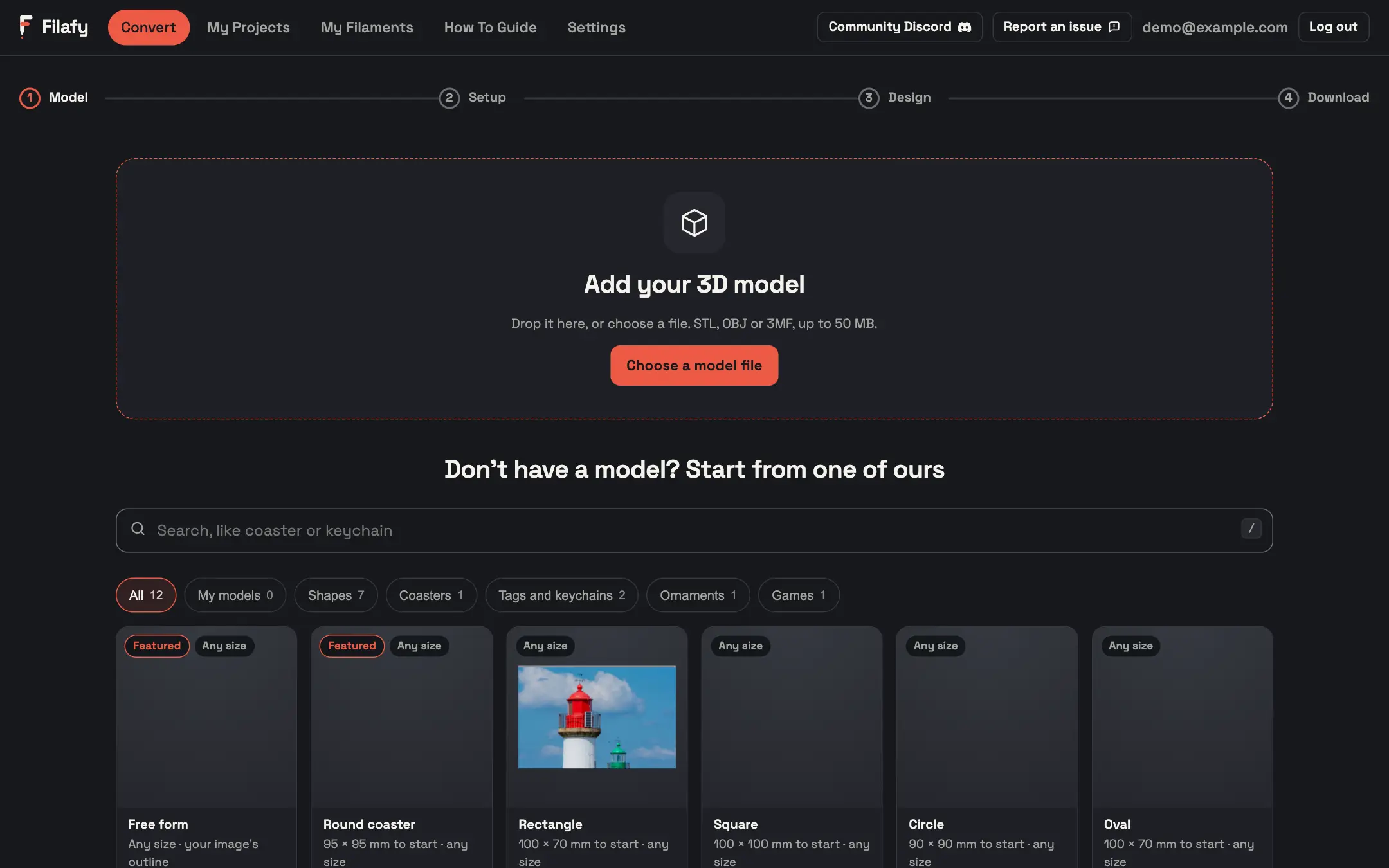
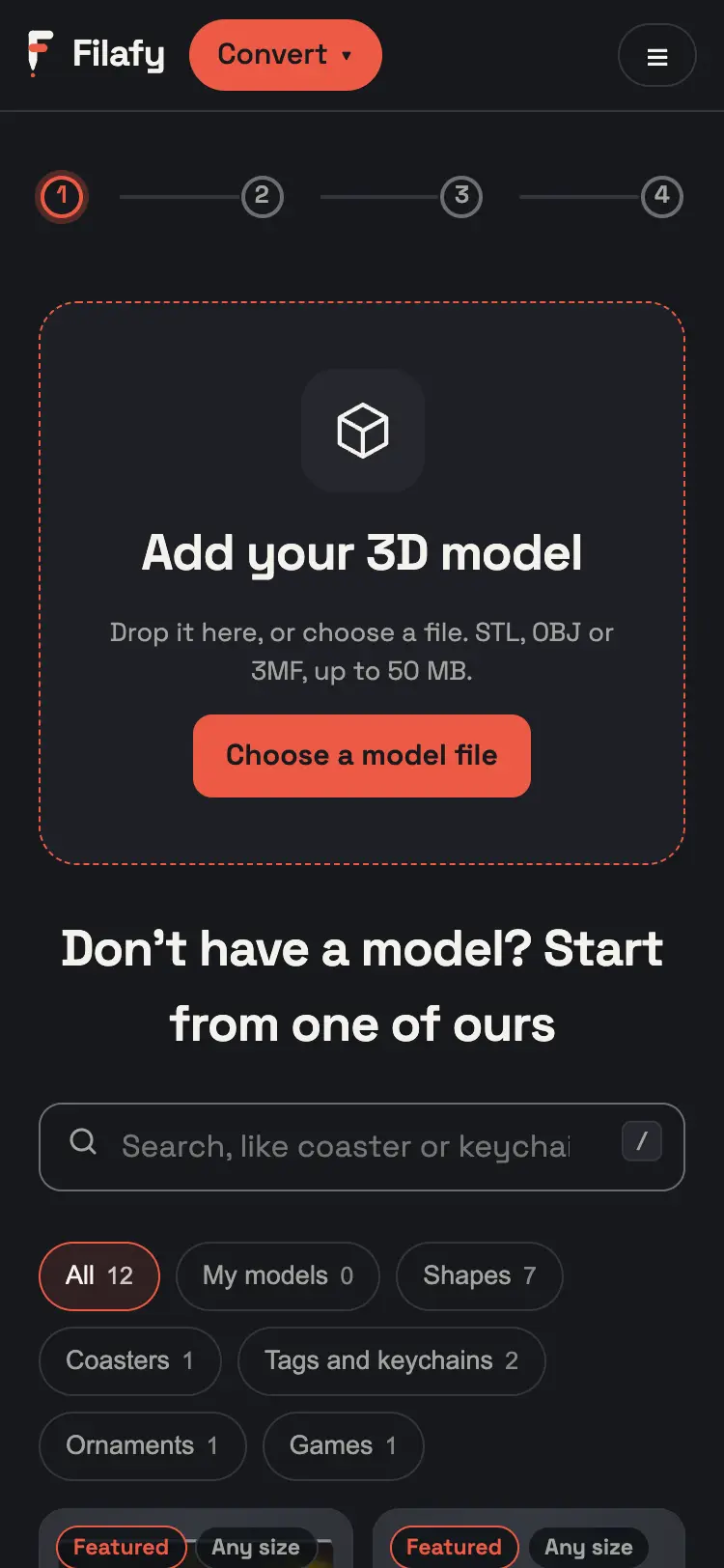
ModelDrop your model
On Convert, drop your STL, OBJ or 3MF on Add your 3D model.
A model up to 50 MB is fine.
 1
 1
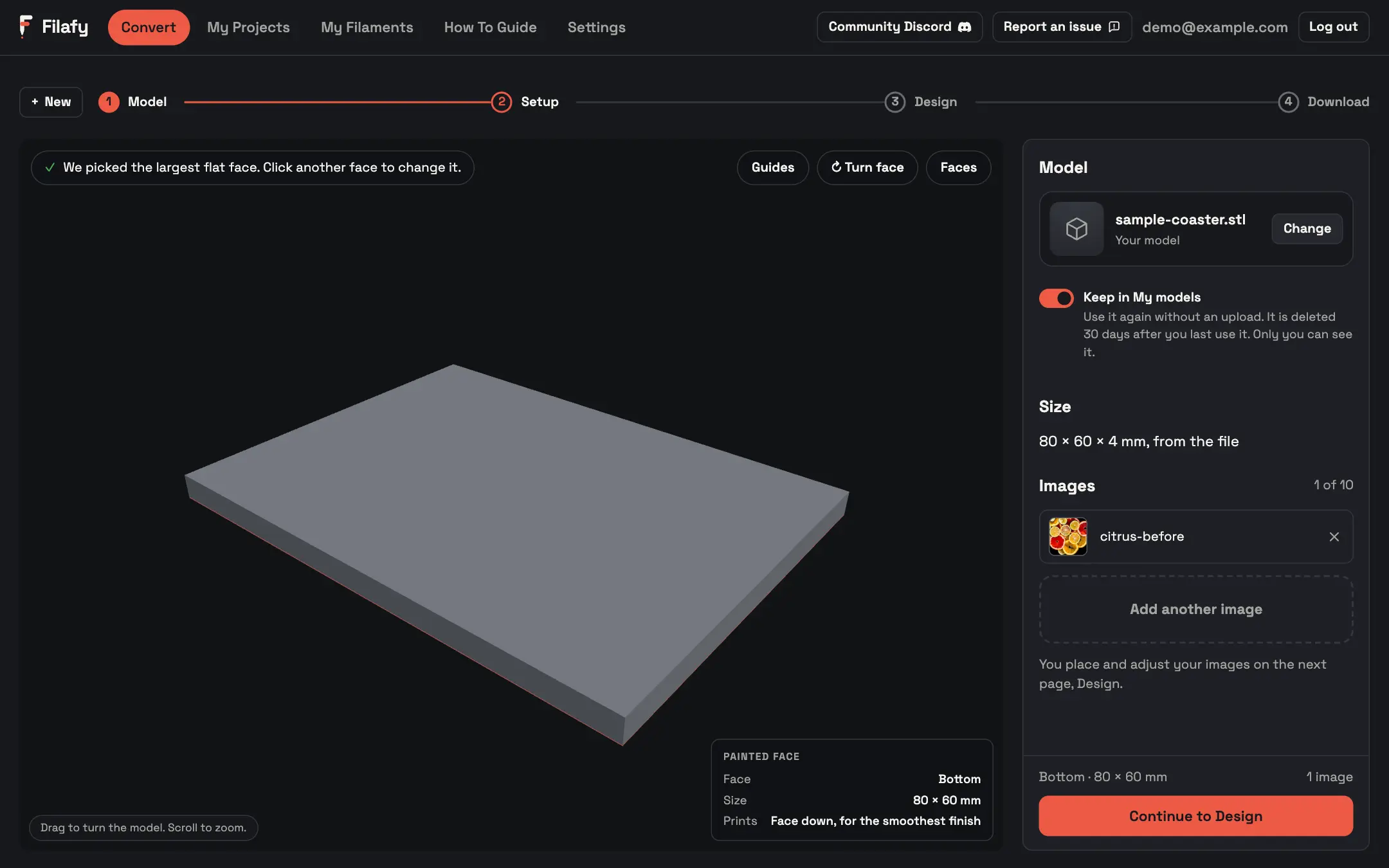
SetupCheck the face
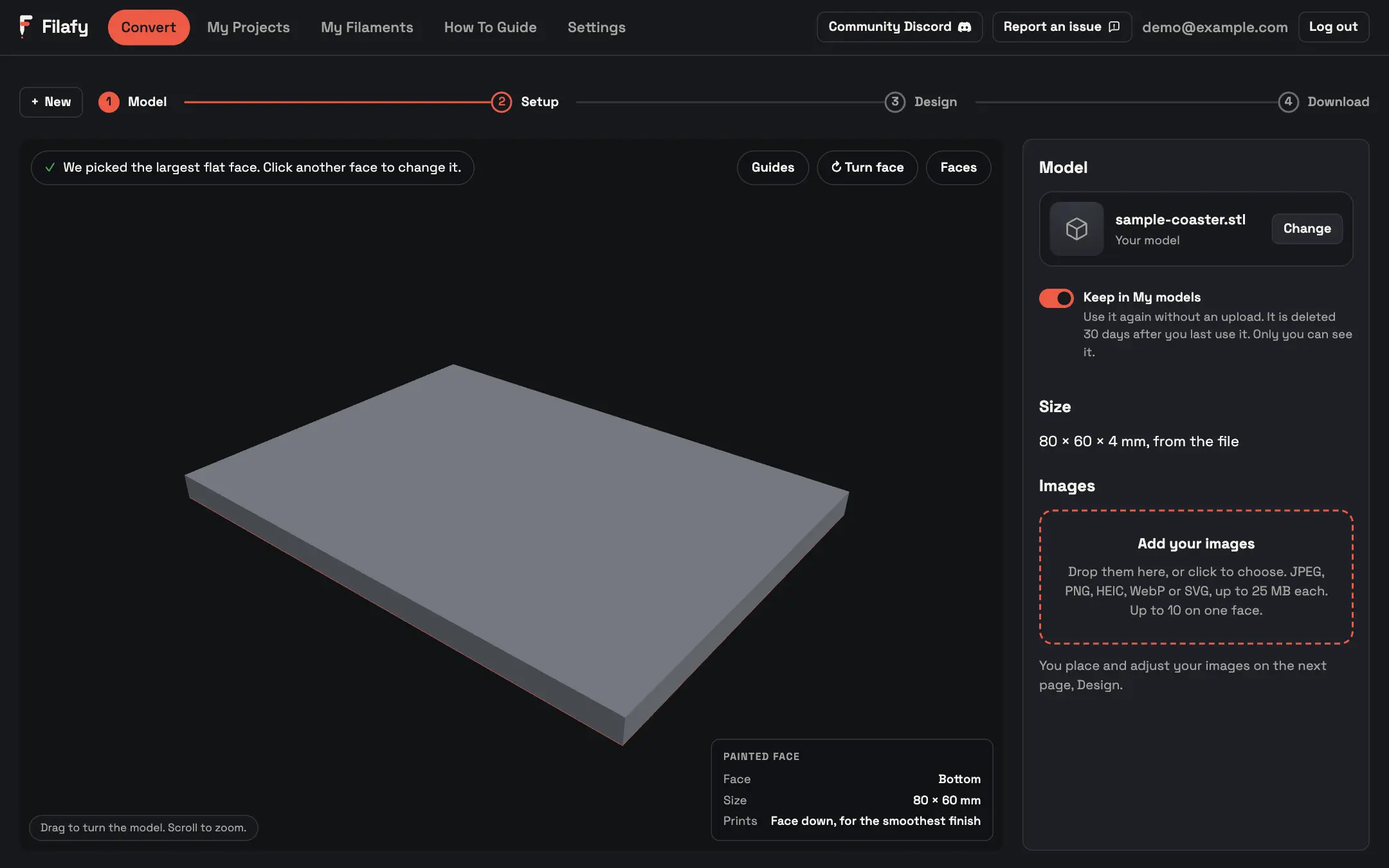
Check the face that Filafy picked. To use another face, click it on the model.
Face sideways? Press Turn face to turn it a quarter turn.
Why
Filafy picks the largest flat face. Its real size and outline fill in on their own.
 2
SetupKeep it for next time
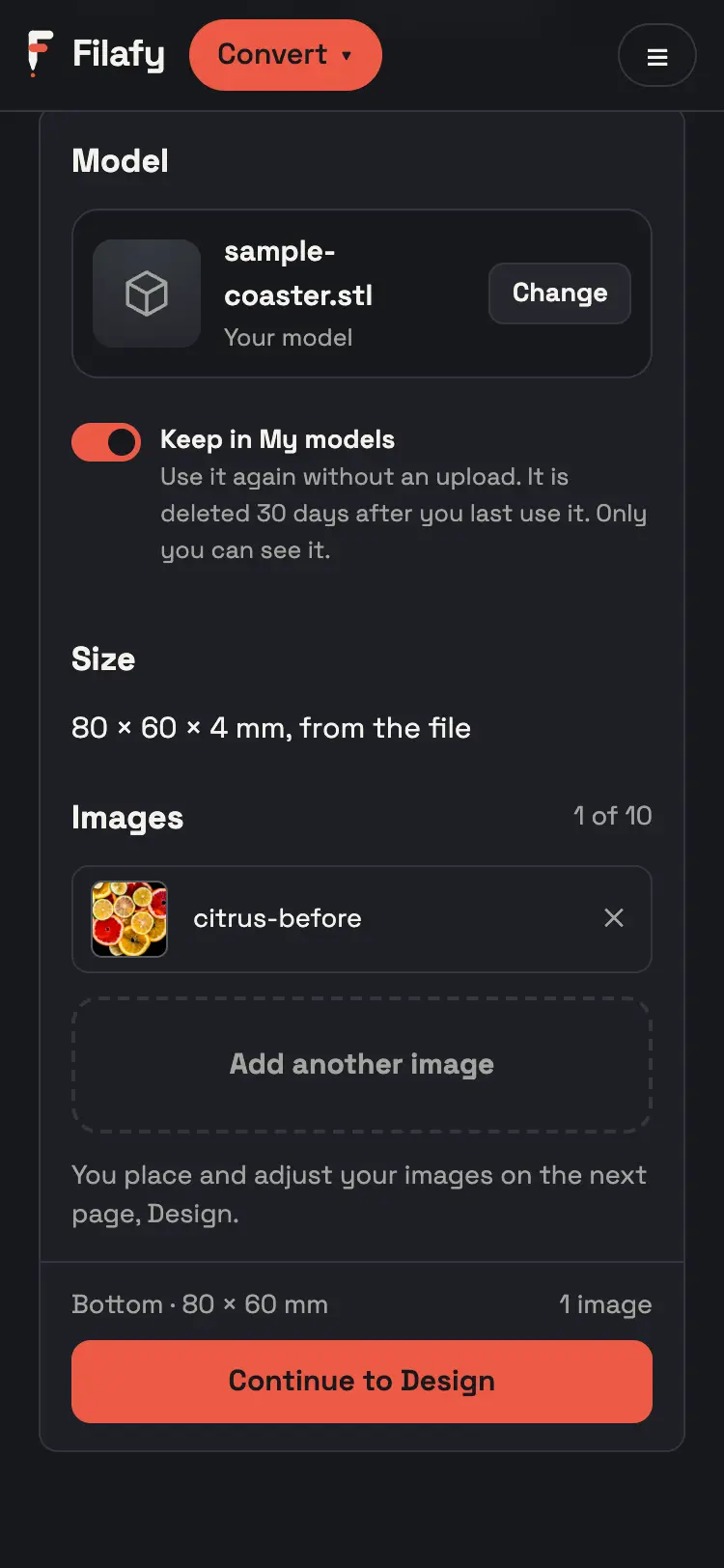
Leave Keep in My models on to use this model again with no upload.
Switch it off to use the model this time only.
Why
Only you can see it. It is deleted 30 days after you last use it.
3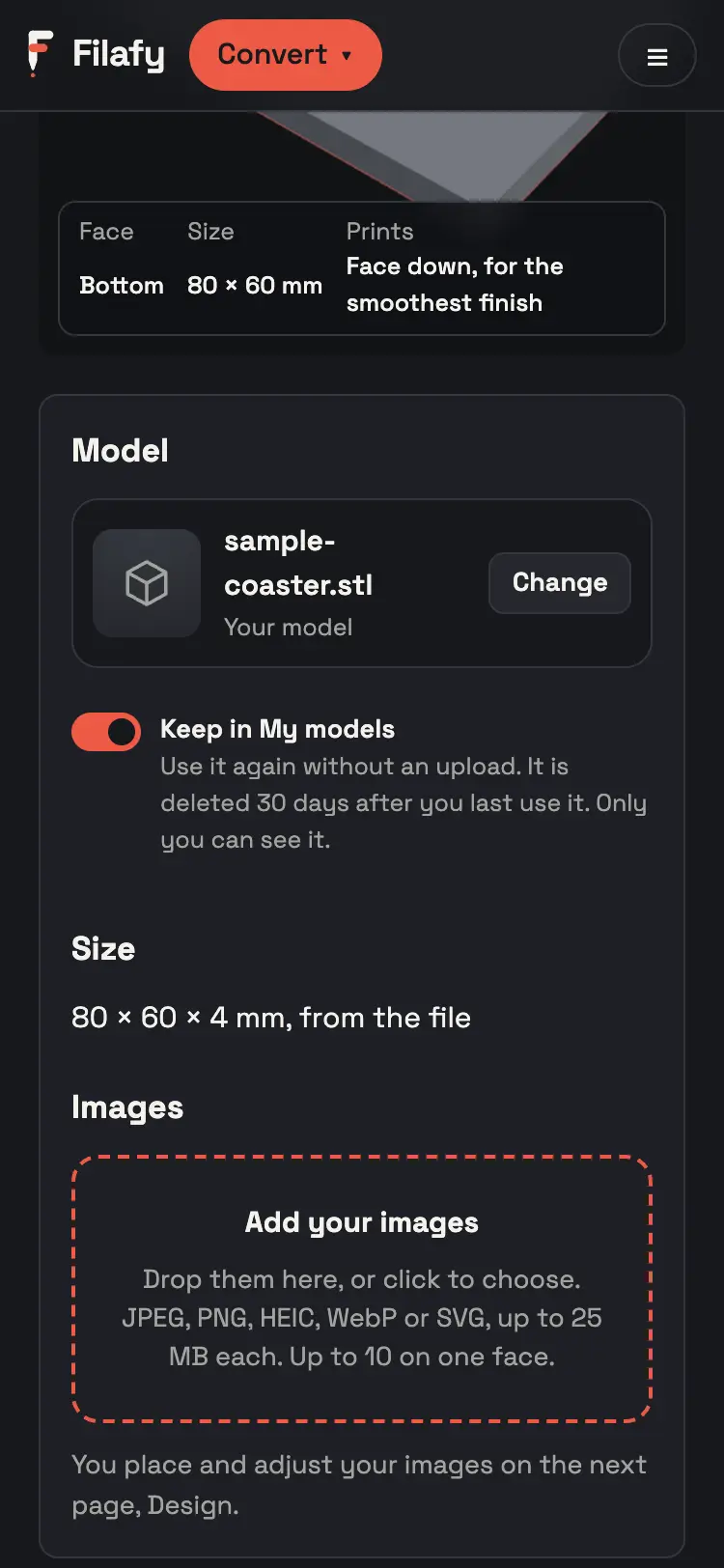 3
SetupAdd your image
Drop your image on Add your images. Then press Continue to Design.
 4
 4
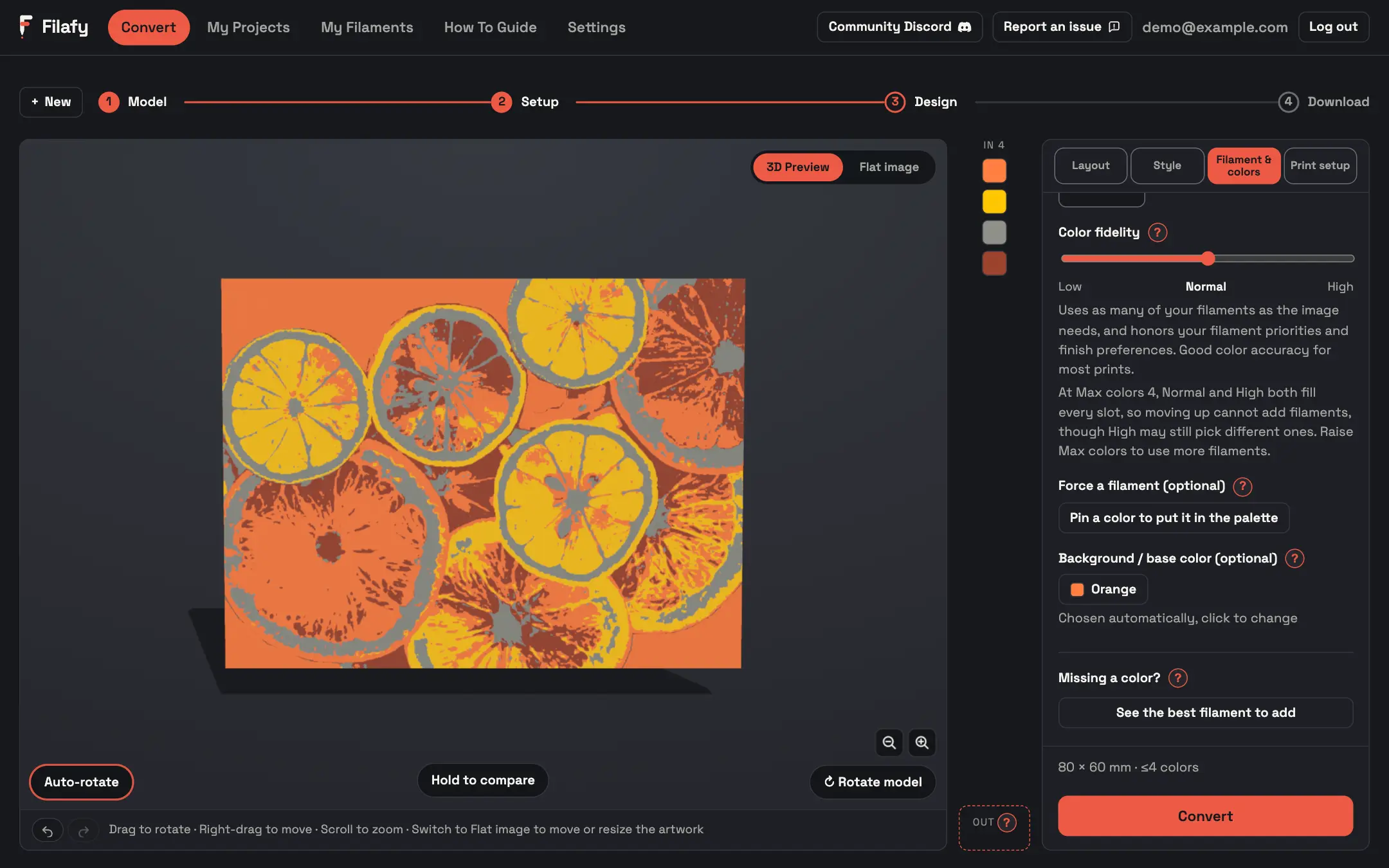
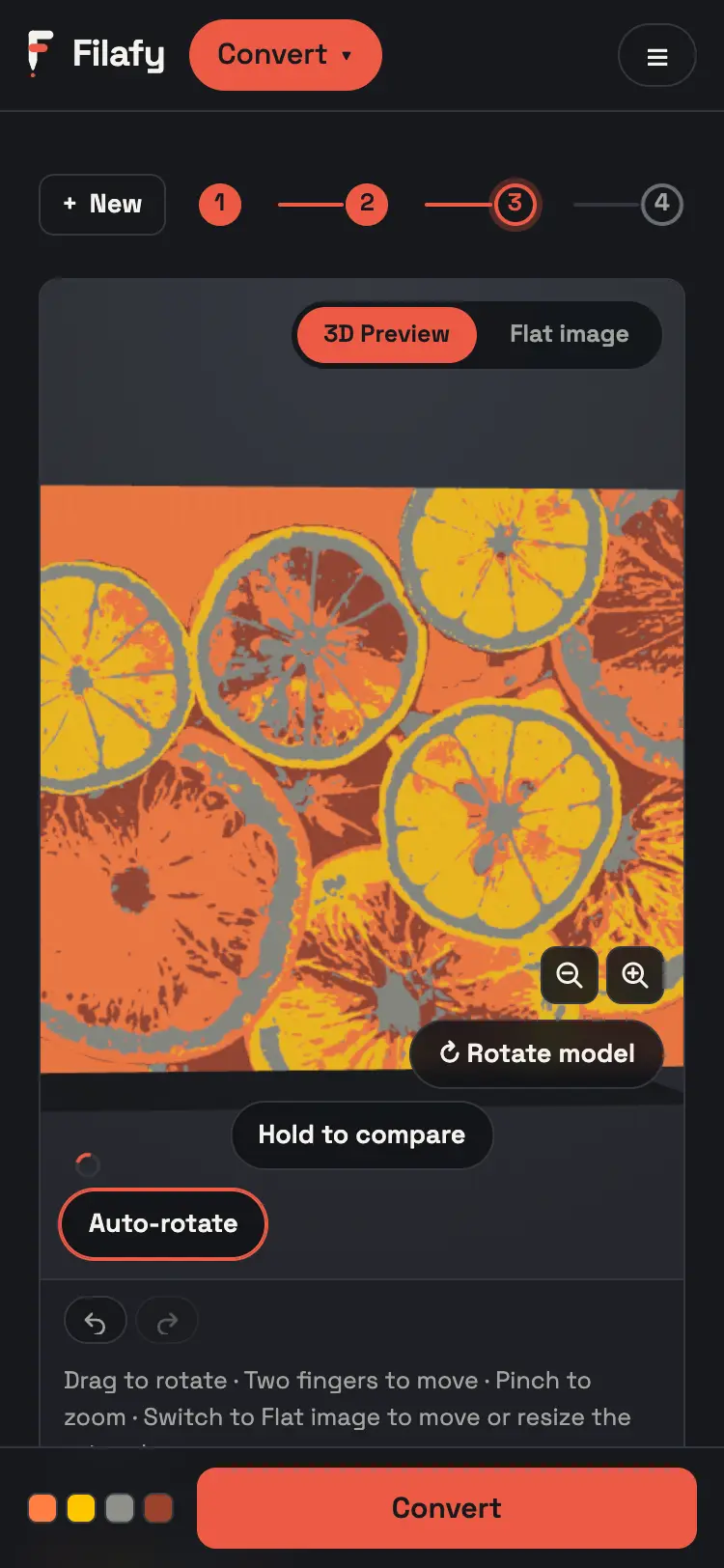
DesignDesign it and download
Do the rest as in Make your first print, from Pick a style.
Switch on 3D Preview to see the image on your model.
 5
 5
If it goes wrong
- Filafy says the surface is not flat enough. Pick a flat face. Filafy cannot paint a curved surface.
- A warning says the model may not fit. Check that it fits
Set up the print
A painted model prints without its original colors. Filafy does not keep the colors that are already painted on a 3MF. It prints the model as if it had no paint, and your image is the only paint on the model.
Also on Model
Next stage: 2 Setup, Set the size and add images